Your HandyTrac key control system plays an important role in protecting assets and tracking key usage, but proper network connectivity is essential for the system to perform at its best.
Whether you are installing a new system or updating an existing one, connecting your HandyTrac system to your network allows it to sync activity, maintain accurate records, and support daily operations without interruption.
This guide explains how to set up your HandyTrac system using either Wi-Fi or Ethernet so your property can maintain secure and reliable key control.
Why Network Connectivity Is Important for Key Control Systems
A connected key control system does more than store keys. It maintains accountability, tracks activity, and ensures your team has accurate information at all times.
When your HandyTrac system is properly connected to your network, it can:
- Sync key transactions and activity logs
- Maintain accurate audit trails
- Support administrator access and system management
- Receive important system updates
- Ensure reliable system performance
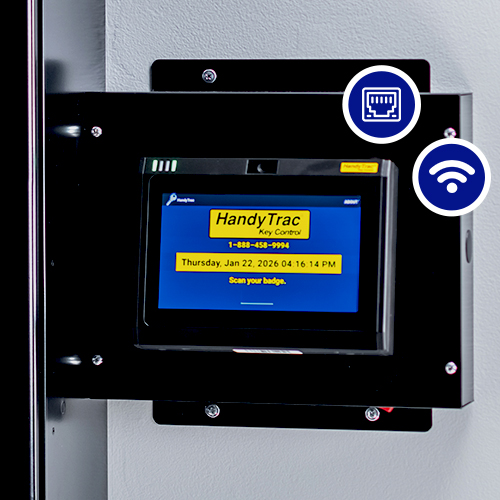
Without proper connectivity, your system may not sync correctly, which can limit visibility and reduce operational efficiency.
How to Connect Your HandyTrac System Using Wi-Fi
Wi-Fi provides flexibility for properties where running cables may not be practical. It allows your system to connect wirelessly while maintaining reliable communication.
Steps to Set Up Wi-Fi
Follow these steps to connect your HandyTrac system to Wi-Fi:
- Log in to the HandyTrac keypad using Master Access.
- Select the Administration link in the top right on the screen
- Select System Settings.
- From the settings menu, select Wi-Fi.
- Make sure the Wi-Fi is on and tap the network name, then select the “pencil” icon at the top right to access Advanced Options. You can configure advanced network options such as Proxy and Static IP settings.
- HandyTrac recommends DHCP IP address reservation on the network rather than manually setting static IP information.
- Do not modify advanced options unless directed to by your help desk or internal IT
- Some secure networks require specific device approval. Contact your internal IT or Network Administrator if required.
Note: The HandyTrac system does not support on-system VPN login or additional guest network terms and conditions acceptance.
Once connected, your system will begin syncing activity and maintaining accurate records automatically.
Need help? Check out our step by step video on Wi-Fi set up.
Wi-Fi Best Practices
To ensure consistent performance:
- Place the system within range of a strong signal
- Avoid areas with signal interference
- Use a secure private network
- Ensure your network remains active and stable
How to Connect Your HandyTrac System Using Ethernet
Ethernet provides a direct wired connection and is often the most reliable option for permanent installations. It ensures consistent communication and reduces the risk of signal interruption.
Steps to Set Up Ethernet
Follow these steps to connect your HandyTrac system using Ethernet:
- Start by plugging your ethernet cable into your HandyTrac system
- Log in to the HandyTrac keypad using Master Access.
- Select the Administration link in the top right on the screen
- Select System Settings.
- From the settings menu, select Ethernet.
- Select “Ethernet Configuration” for advanced ethernet networking options.
- Tap the Ethernet slider at the top to enable the wired ethernet connection on the system
- Log out of the system and you should see “data transfer successful”
Static IP information can be entered if required by tapping “Ethernet configuration” and selecting the radial button for static IP.
Need help? Check out our step by step video on ethernet set up.
Ethernet Best Practices
Ethernet is recommended when:
- Your system is installed in a permanent location
- A network port is available nearby
- Maximum reliability is required
- Your property uses structured network infrastructure
Choosing the Right Connection for Your Property
Both Wi-Fi and Ethernet provide reliable connectivity when configured properly. The best choice depends on your property’s layout and infrastructure.
Wi-Fi is ideal when flexibility is needed, or running cables is not practical. Ethernet is recommended when reliability and stability are the highest priorities.
Many properties prefer Ethernet for permanent installations and Wi-Fi for locations where wiring is not easily accessible.
Supporting Reliable Key Control Through Proper Setup
Your HandyTrac key control system helps protect your property and maintain accountability, but reliable network connectivity ensures the system can perform consistently.
By properly setting up Wi-Fi or Ethernet, your property can maintain accurate records, support your team, and ensure your key control system operates efficiently every day.

Taking the time to configure your network connection correctly helps ensure long-term reliability and confidence in your key control process.
If you need further assistance, HandyTrac support is available to help. Submit a request or give us a call by accessing our Support page.