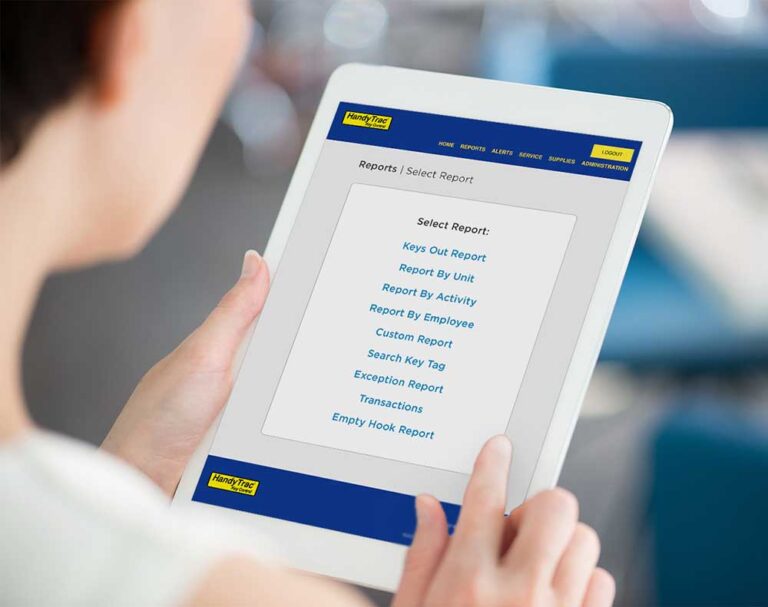
- Log in to the HandyTrac keypad.
- Select Administration in the top right corner.
- Select Edit Key Tags.
- Select Change Tags by Unit.
- From the list of units, select the unit that needs a new key tag.
- The system will prompt you to verify the selected unit. Tap OK.
- Scan the new key tag.
- The system will confirm that the old key tag has been replaced.
- Match the key to the new key tag and place it on the indicated hook.
FAQs
How to Update Key Tags by Unit
How to Update Key Tags by Tag Number
- Log in to the HandyTrac keypad.
- Tap Administration in the top right corner.
- Select Edit Key Tags.
- Choose Change Tags by Tag Number.
- Type in the old key tag number.
- Scan the new key tag when prompted.
- The system will confirm that the old key tag has been replaced.
- Match the key to the new key tag and place it on the indicated hook.
How to Edit an Existing Employee Badge
To edit an employee:
- Navigate to Employees
- Locate the employee in the Active Employees list
- Select Edit
- Save
You can update:
- Badge number
- PIN
- Access level
- Language settings
This is useful when employees change positions or need updated permissions.
How to Remove or Deactivate an Employee
If an employee leaves the property or no longer needs access:
- Open the employee profile
- Change Active from Yes to No
- Save the changes
Deactivating employees helps maintain secure key accountability and prevents unauthorized access.
After deactivating an employee, sync the HandyTrac machine again to apply the updates.
How to Add a New Employee Badge
- Log in to the HandyTrac website and select Admin.
- From the Actions menu, choose Employees, then select Add Employee.
- Enter the employee’s information, including their name, 6-digit badge number (located above the barcode on the employee badge and always beginning with 15), a 4-digit PIN, access level, and language preference. Some fields may vary depending on your HandyTrac system, but even systems with biometric fingerprint access require both a badge number and PIN.
- Select Save to create the employee.
- Sync the cabinet so it receives the updated employee information by tapping the HandyTrac logo once on touchscreen systems or pressing the ENTER button once on Generation 10 systems.
How to Edit Unit Names with HandyTrac
- Sign in using an account with Master Access.
- Open the Administration menu.
- Select Change Apt/Unit#.
- Choose the unit you want to update from the list of apartments and locations.
- Enter the new unit name using the on-screen keyboard.
- Confirm the change to save the updated unit name.
How to Set Up Wi-Fi
- Log in to the HandyTrac keypad Master Access.
- Select the Administration link in the top right on the screen
- Select System Settings.
- From the settings menu, select Wi-Fi.
- Make sure the Wi-Fi is on and tap the network name, then select the “pencil” icon at the top right to access Advanced Options. You can configure advanced network options such as Proxy and Static IP settings.
- HandyTrac recommends DHCP IP address reservation on the network rather than manually setting static IP information.
- Do not modify advanced options unless directed to by your help desk or internal IT
- Some secure networks require specific device approval. Contact your internal IT or Network Administrator if required.
How to Set Up Ethernet
- Start by plugging your ethernet cable into your HandyTrac system
- Log in to the HandyTrac keypad using Master Access.
- Select the Administration link in the top right on the screen
- Select System Settings.
- From the settings menu, select Ethernet.
- Select “Ethernet Configuration” for advanced ethernet networking options.
- Tap the Ethernet slider at the top to enable the wired ethernet connection on the system
- Log out of the system and you should see “data transfer successful”
Static IP information can be entered if required by tapping “Ethernet configuration” and selecting the radial button for static IP.
How to Manage a Property Management Transition
- Sign in to your HandyTrac system. Check any welcome materials from the previous management company for login credentials. If you don’t have access, contact HandyTrac Support to verify your property and regain access safely.
- Update authorized users. Remove access for former employees, add new team members with the appropriate permissions, and enroll new users in badge or biometric authentication before their first shift.
- Review and reset administrator credentials. Change administrator passwords, update security questions and backup contact information, and verify that system alerts and audit reports are being sent to the correct email addresses.
- Verify key inventory and audit reports. Run a complete key inventory, confirm all keys are accounted for, and review recent transaction logs for any outstanding key checkouts or unusual activity.
- Update your property information. Confirm that your property name, management company, contact information, and other account details are current to keep reports, audits, and support records accurate.
- Contact HandyTrac Support if you need assistance. Our team can help with account access, user setup, system configuration, and any questions during your management transition to ensure your key control system is ready from day one.