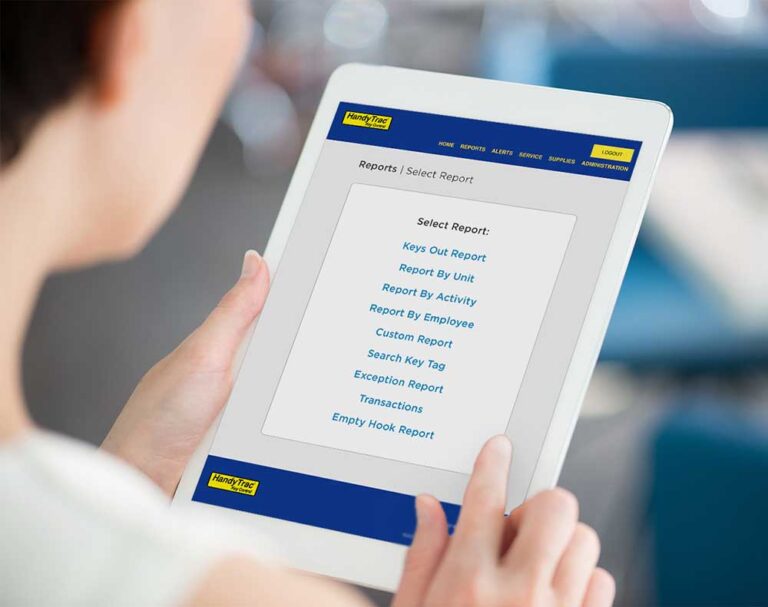

Managing employee badges is one of the most important parts of maintaining secure and organized key control. Whether you’re onboarding a new employee, updating access permissions, or removing a former staff member, keeping employee badges up to date helps your property maintain accountability and operational efficiency.
This guide explains how to add, edit, and deactivate employee badges in a HandyTrac key control system.
Why Employee Badges Matter in Key Control
Every employee who accesses keys through a HandyTrac system must have an assigned employee badge. These badges help properties:
- Track who checked out keys
- Create detailed audit trails
- Restrict access to authorized employees
- Improve accountability across maintenance, leasing, janitorial, and management teams
- Support biometric fingerprint access on compatible systems
For systems with fingerprint readers, employees must first have a badge profile created before fingerprints can be assigned.
How to Add a New Employee Badge
All employee badge changes are completed through the HandyTrac website.
Step 1: Log Into the HandyTrac Website
Go to the HandyTrac Login Portal and log in to your account.
Step 2: Open the Administration Menu
From the website:
- Select Admin in the top right corner
- From the Actions list, choose Add/Edit Employee Badges
This section allows you to create, edit, or deactivate employee badges.


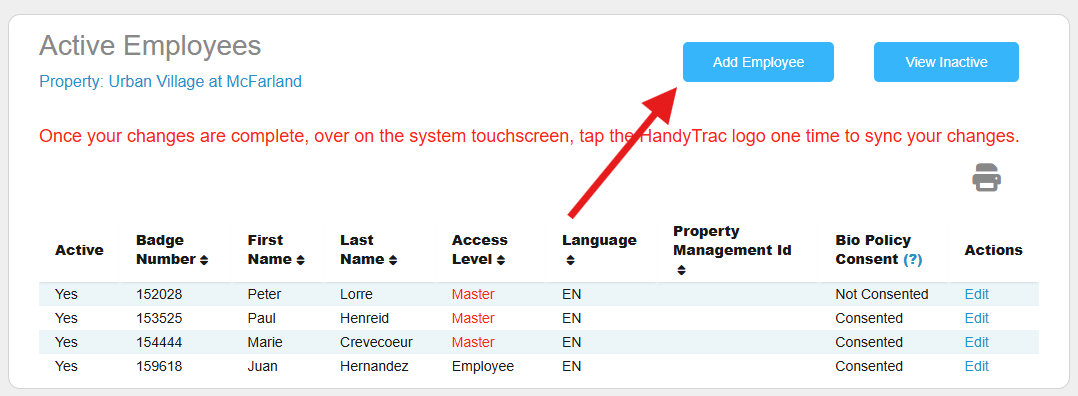
Step 3: Add a New Employee
Select Add Employee.
You will then fill out the employee information fields.
Required information includes:
- Employee name
- Badge number
- PIN number
- Access level
- Language preferences
Note: Not all fields may be available depending on your HandyTrac system type.
Even if your property uses biometric fingerprint access, a badge number and PIN are still required.
Finding the Badge Number
The badge number is located above the barcode on the physical employee badge.
Important details:
- Badge numbers are 6 digits long
- All badge numbers begin with “15”
For the PIN:
- Any 4-digit number can be used
Once all information is entered, select Save.

Syncing the System After Employee Changes
After adding or editing employees, the system must sync so the cabinet receives the updated information.
For Touchscreen Systems
Tap the HandyTrac logo on the touchscreen one time.
For Generation 10 Systems
Press the ENTER button one time.
This sync updates the cabinet with the latest employee badge information.


How to Edit an Existing Employee Badge
To edit an employee:
- Navigate to Add/Edit Employee Badges
- Locate the employee in the Active Employees list
- Select Edit
You can update:
- Badge number
- PIN
- Access level
- Language settings
This is useful when employees change positions or need updated permissions.
How to Remove or Deactivate an Employee
If an employee leaves the property or no longer needs access:
- Open the employee profile
- Change Active from Yes to No
- Save the changes
Deactivating employees helps maintain secure key accountability and prevents unauthorized access.
After deactivating an employee, sync the cabinet again to apply the updates.
Important Employee Badge Notes
Employee Names Cannot Be Changed
Once an employee name is entered into the system, it cannot be edited later.
If a correction is needed, properties may need to deactivate the old employee profile and create a new one.
Reusing Employee Badges
If you want to reuse a badge from a former employee:
- Deactivate the previous employee first
- The badge number will then become available for reassignment
This prevents duplicate badge conflicts within the system.
What Is Master Access?
Master Access is typically intended for property managers or supervisors.
Employees with Master Access can:
- Access administration menus
- Manage advanced cabinet functions
- Adjust system settings
Multiple employee badges can be assigned Master Access if needed.
Best Practices for Employee Badge Management
To maintain strong key accountability:
- Assign every badge to a specific individual
- Avoid shared employee badges
- Deactivate former employees immediately
- Regularly review access permissions
- Sync cabinets after every employee update
Electronic key control systems work best when employee permissions remain accurate and up to date.
Why Employee Badge Management Matters
Properties today manage more access points, vendors, maintenance teams, and security expectations than ever before. Keeping employee badge information updated helps support:
- Faster key retrieval
- Better operational visibility
- Stronger accountability
- Improved security procedures
- Cleaner audit trails
For multifamily housing, student housing, senior living communities, and commercial properties, organized employee badge management is an important part of maintaining an effective key control process.
If your property is looking to improve key accountability and access management, learn more about HandyTrac electronic key control systems.