Key tags are an important part of keeping your HandyTrac key control system organized, accurate, and easy for your team to use. When a key tag is lost, damaged, replaced, or no longer scanning correctly, updating it quickly helps ensure the right key remains connected to the right unit.
For property management teams, accurate key tags help support daily operations such as maintenance requests, leasing appointments, inspections, vendor access, and emergency response. If a key tag is incorrect or outdated, it can create confusion and slow your team down.
This guide explains how to update key tags in HandyTrac using two methods: by unit or by tag number.
Why Updating Key Tags Matters
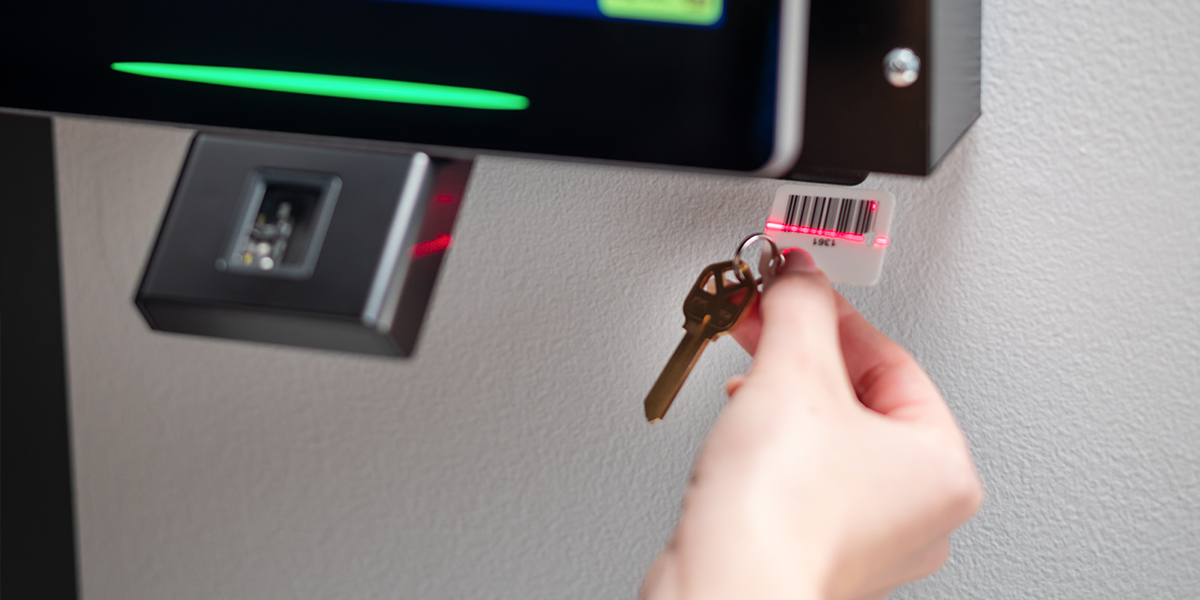
In property management, key control depends on accuracy. Each key tag is connected to a specific unit, and your HandyTrac system uses that tag to help track when keys are pulled, returned, and assigned to the correct hook.
Keeping key tags updated helps your team:
- Replace lost or damaged key tags.
- Keep unit records accurate.
- Prevent scan errors
- Reduce confusion during key check-out and return.
- Maintain better key tracking.
- Support stronger accountability across the property.
When key tags are up to date and correctly assigned, staff members can locate, pull, and return keys more efficiently.
Before You Begin
Before updating key tags, make sure you have the correct access and the replacement tag ready. A badge with Master Access is required to edit key tags in HandyTrac. There are two ways to update a key tag number assigned to a unit. If you know the unit name, use Change Tags by Unit, which is the recommended method. If you only know the key tag number, use Change Tags by Tag Number.
You should also confirm that the new key tag is not already assigned to another location in the system. A key tag must be unassigned before it can be used as a replacement.
How to Update Key Tags by Unit in HandyTrac
- Log in to the HandyTrac keypad.
- Select Administration in the top right corner.
- Select Edit Key Tags.
- Select Change Tags by Unit.
- From the list of units, select the unit that needs a new key tag.
- The system will prompt you to verify the selected unit. Tap OK.
- Scan the new key tag.
- The system will confirm that the old key tag has been replaced.
- Match the key to the new key tag and place it on the indicated hook.
Watch the Step-by-Step Video
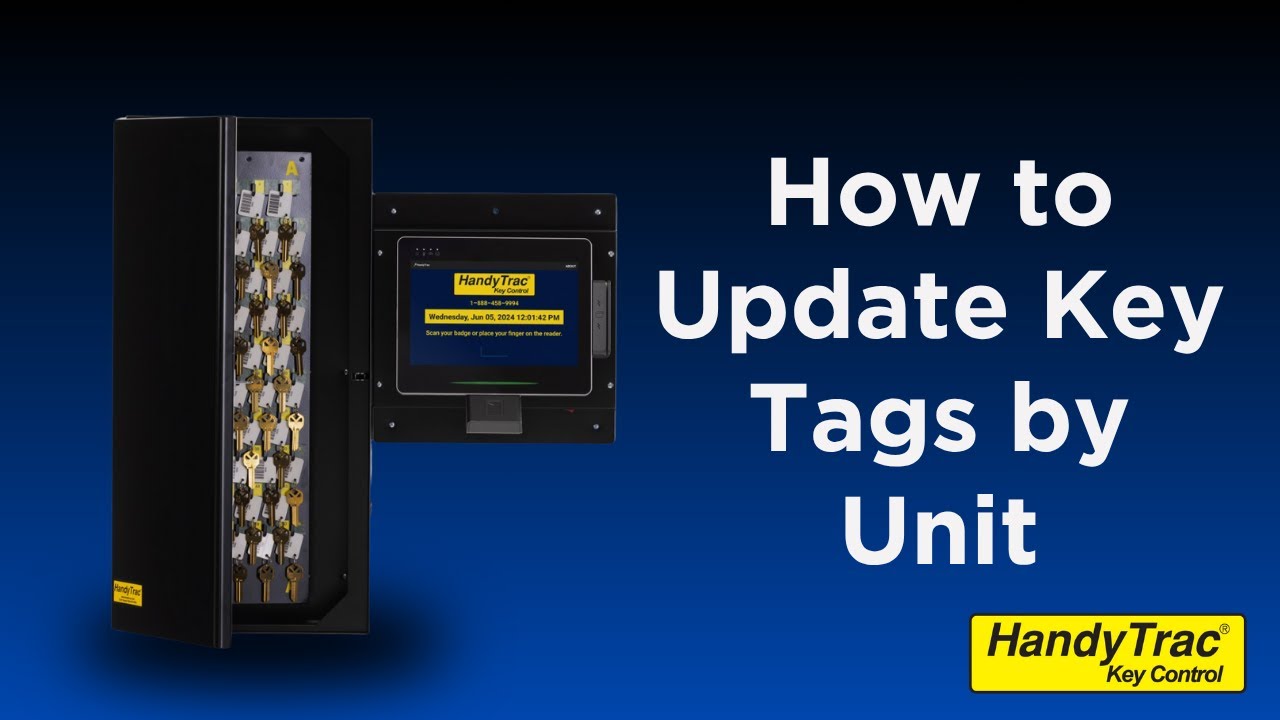
If you prefer to see the process in action, the video below walks through how to update key tags by unit in your HandyTrac Key Control system.
Updating Key Tags by Tag Number
If you do not know the unit name but you do know the key tag number, you can update the key tag using Change Tags by Tag Number. This option is helpful when a key tag is lost, damaged, or needs to be replaced, and the key tag number is the information you have available.
- Log in to the HandyTrac keypad.
- Tap Administration in the top right corner.
- Select Edit Key Tags.
- Choose Change Tags by Tag Number.
- Type in the old key tag number.
- Scan the new key tag when prompted.
- The system will confirm that the old key tag has been replaced.
- Match the key to the new key tag and place it on the indicated hook.
Watch the Step-by-Step Video
If you prefer to see the process in action, the video below walks through how to update key tags by tag number in your HandyTrac Key Control system.

Helpful Notes
If you enter the old key tag number and the system says it is not recognized as a valid tag, that means the old tag is not currently assigned. In that case, use the Search Keytag Report on the HandyTrac website to review the tag’s history and confirm whether it was ever assigned in your system.
Also, a replacement key tag must be unassigned before it can be used. Key tags that are already assigned to another location, including extra locations such as ADMIN### or EXTRA###, cannot be reused for a unit. For lost or damaged key tags, it is recommended to use a new spare key tag.
After Updating a Key Tag
Once the new tag has been assigned, it is a good idea to double-check that the unit and tag are working as expected. If your team recently replaced a lost or damaged tag, make sure the old tag is removed from circulation so it is not accidentally used again.
You may also want to remind staff that the updated tag should now be used for that unit moving forward. This helps prevent confusion, especially during busy maintenance days or vendor visits.
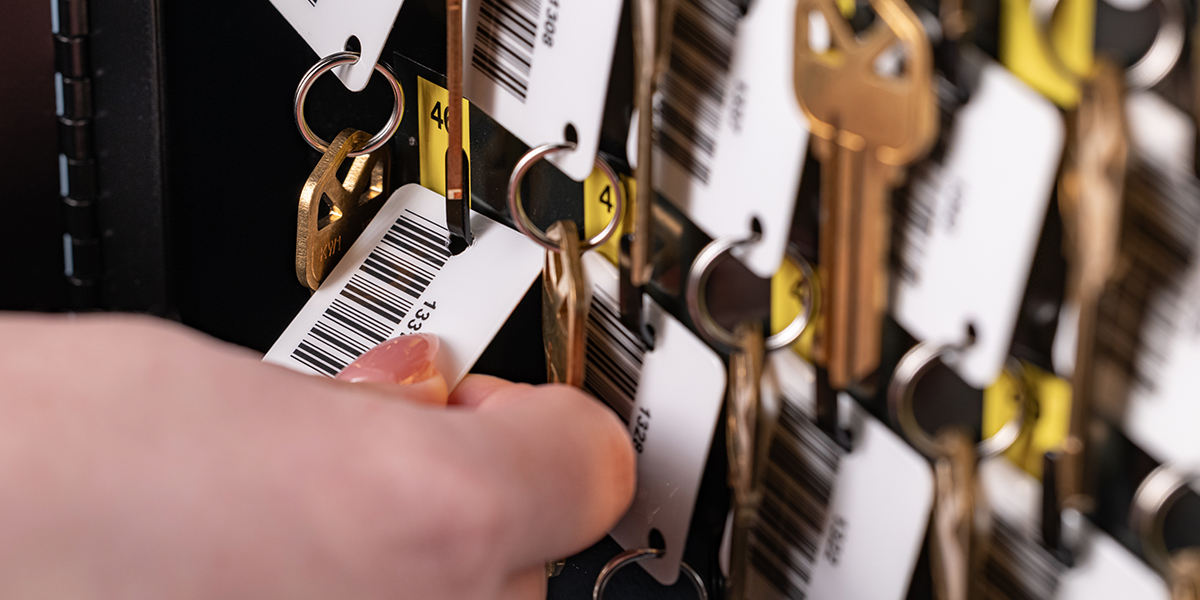
The Importance of Keeping Key Tags Accurate
Updating key tags by unit is a simple but important part of maintaining a reliable key control process. When tags are replaced correctly, your HandyTrac system can continue tracking key activity accurately and helping your team stay organized.
By keeping key tags current, properties can reduce delays, support better accountability, and make daily key management easier for everyone on staff.
Need help with key tag updates or system support? Contact HandyTrac’s dedicated support team to learn more about keeping your key control system accurate, secure, and easy to manage.