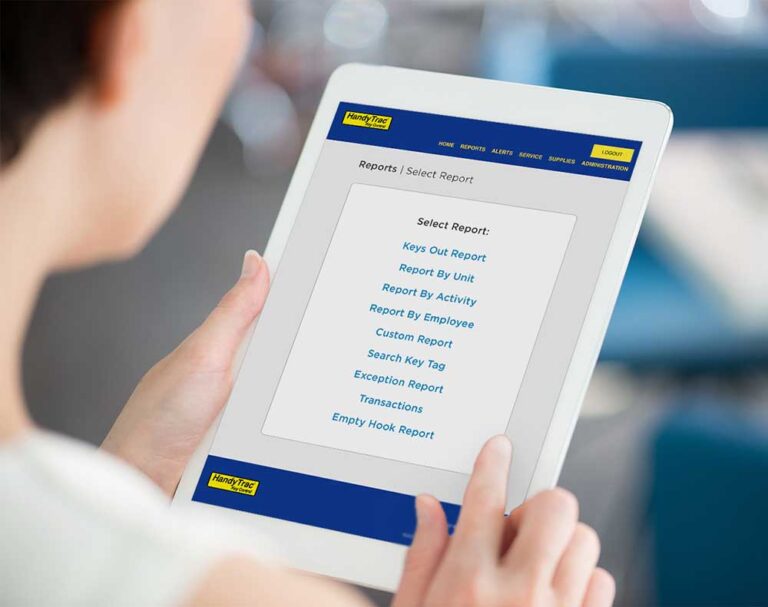
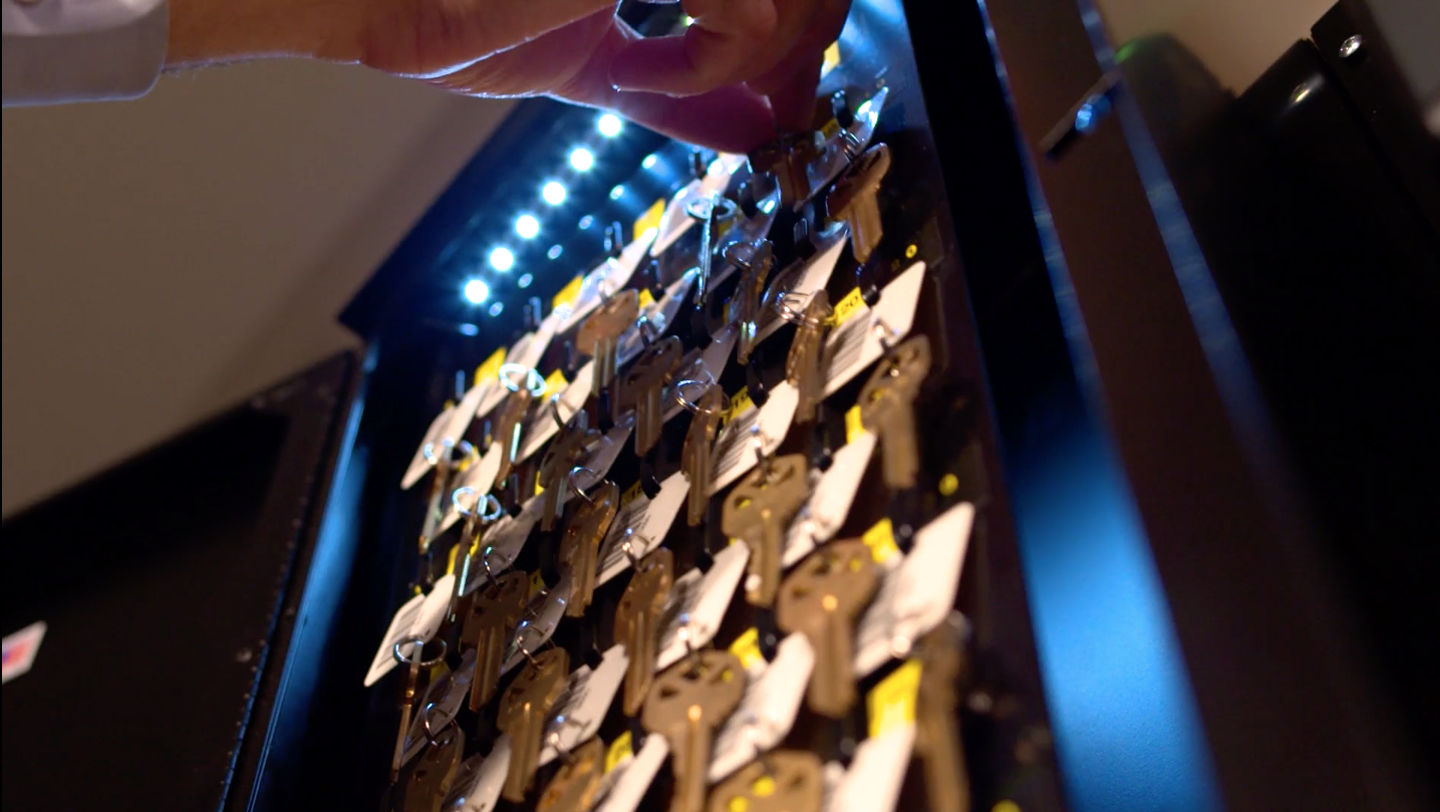
Pulling and returning keys are among the most common tasks your property team will perform with a HandyTrac key control system. Following the correct process helps ensure each key is properly tracked, assigned to the right transaction, and returned to a secure location.
HandyTrac records key activity for the employee who accessed the system, giving property teams greater visibility into who pulled a key, why it was needed, and when it was returned. This guide walks through the steps for pulling and returning keys using a HandyTrac Touch system.
Why the Pull and Return Process Matters
A reliable key control process depends on accurate information. Every time an employee pulls or returns a key, completing each step correctly helps maintain an accurate audit trail and an up-to-date record of which keys are currently outside the cabinet.
Following a consistent process can help your team:
- Locate keys more efficiently.
- Document the reason for each key pull.
- Verify that the correct key was removed.
- Keep the Keys Out Report accurate.
- Return keys to the proper location.
- Strengthen accountability across daily operations.
When every employee follows the same procedure, managers can more easily review key activities and determine which keys are currently in use.
Before You Begin
Each employee should use their own badge and PIN or registered fingerprint when accessing the HandyTrac system. Sharing login credentials can make the audit trail inaccurate because transactions may be recorded under the wrong employee.
Before pulling a key, make sure you know:
- The unit or location you need to access.
- The reason the key is being pulled.
- Any related work order information required by your property.
The steps below reflect the HandyTrac Touch interface. Available activities and menu options may vary based on your property’s system configuration.
How to Pull a Key From a HandyTrac System
1. Log in to the HandyTrac system
Use your fingerprint or scan your employee badge and enter your PIN.
2. Tap the Pull Key icon.
3. Select the appropriate activity.
Choose the option that best describes why you need the key, such as a maintenance inspection, resident lockout, unit showing, or other approved activity. Selecting the correct activity helps keep your property’s audit trail accurate.
4. Select the unit or location.
Find the unit in the displayed list. You can also use the search box or building filter when those options are available.
5. Locate the key.
The cabinet will unlock, and the screen will display the hook where the requested key is located.
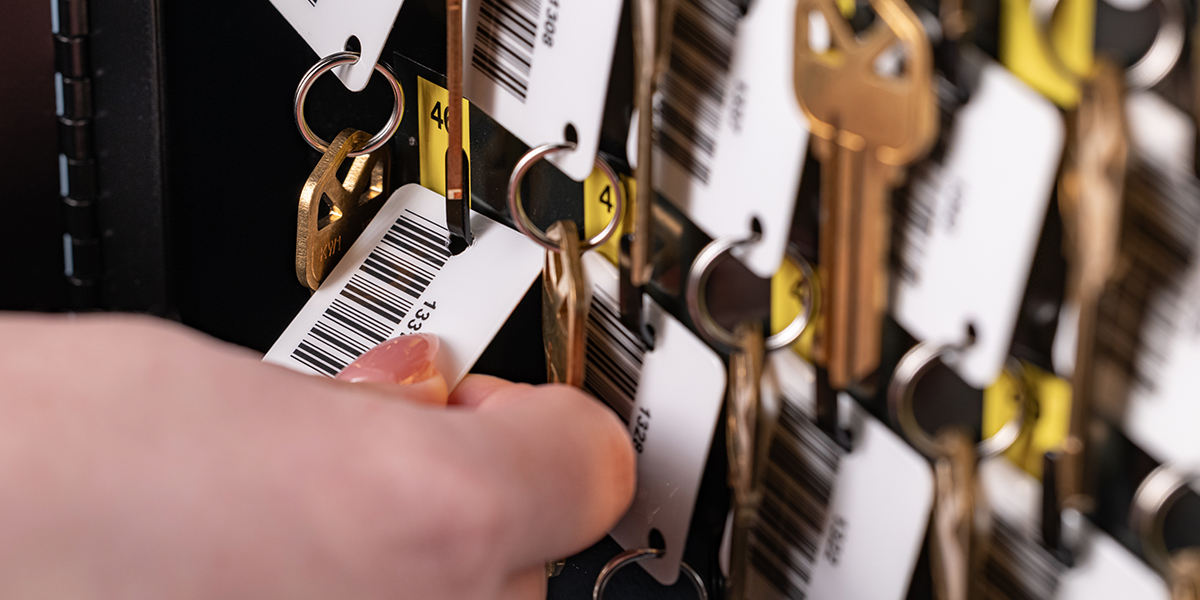
6. Remove and scan the key tag.
Scan the tag as directed to verify that you removed the correct key.
7. Pull any additional keys.
Continue selecting units when more than one key is needed. To help keep multiple keys organized and secure while out in the field, HandyTrac offers accessories such as the Multi Key Pouch, Key Binder, and Dry Erase Clipboard on the HandyTrac Store online or via the HandyTrac app on Apple and Android devices.
8. Close the cabinet and log out.
Once you have finished pulling keys, securely close the cabinet door before tapping “Log Out”.
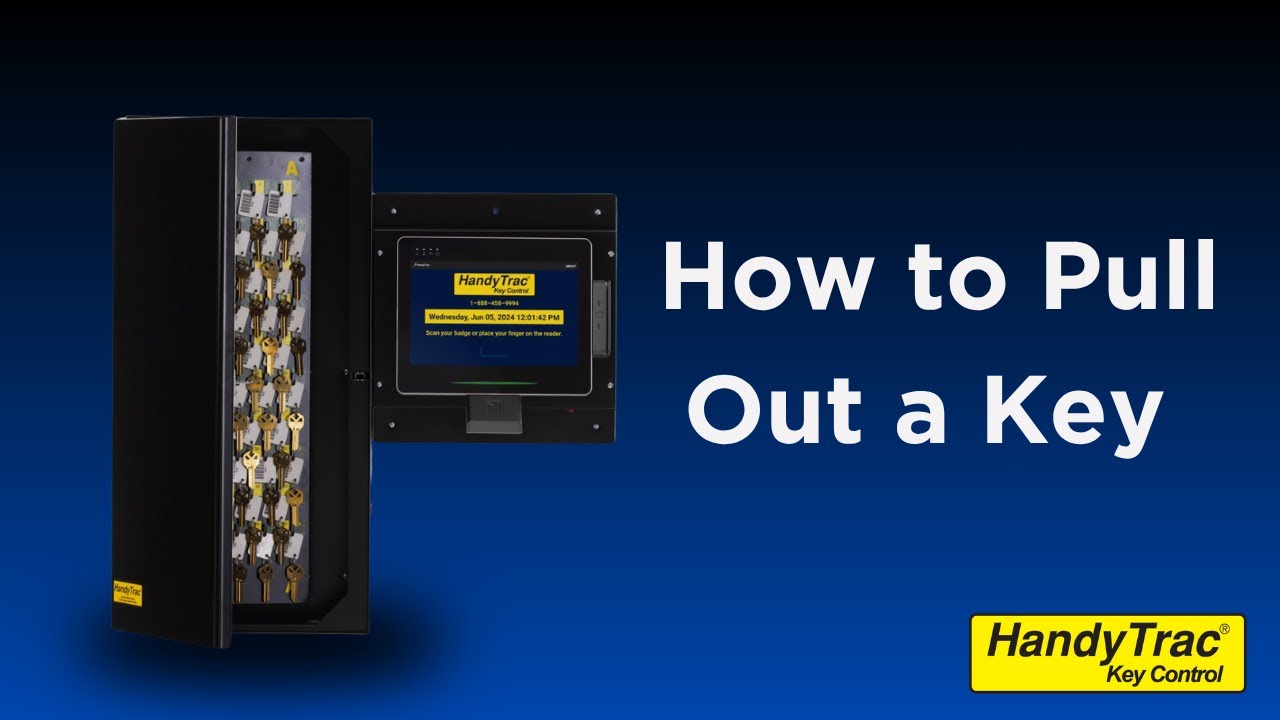
Watch How to Pull a Key
The video below provides a quick visual walkthrough of the process:
Helpful Notes When Pulling Keys
If a unit appears grayed out on the screen, its key may already be checked out or access to that unit may be restricted. Select the unit to view any additional information provided by the system.
When pulling several keys for different purposes, make sure each key is assigned to the correct activity. You can change the selected activity by tapping the current activity at the top of the screen.
The cabinet door should always be closed before you log out. The system may also time out after a period of inactivity, helping prevent another person from completing a transaction under your login.
How to Return a Key to a HandyTrac System
Returning a key is just as important as pulling it. A key is not considered properly returned until its tag has been scanned and the key has been placed on the hook assigned by the system.
1. Log in to the HandyTrac system.
2. Tap Return Key.
3. Scan the key tag.
4. Review the assigned hook.
The system will display the hook where the key should be placed and unlock the cabinet
5. Place the key on the assigned hook.
Be sure to use the location displayed on the screen rather than returning the key to the hook where you originally found it.
6. Return any additional keys.
Scan each key tag individually and place each key on its assigned hook.
7. Close the cabinet door.
8. Log out of the system.
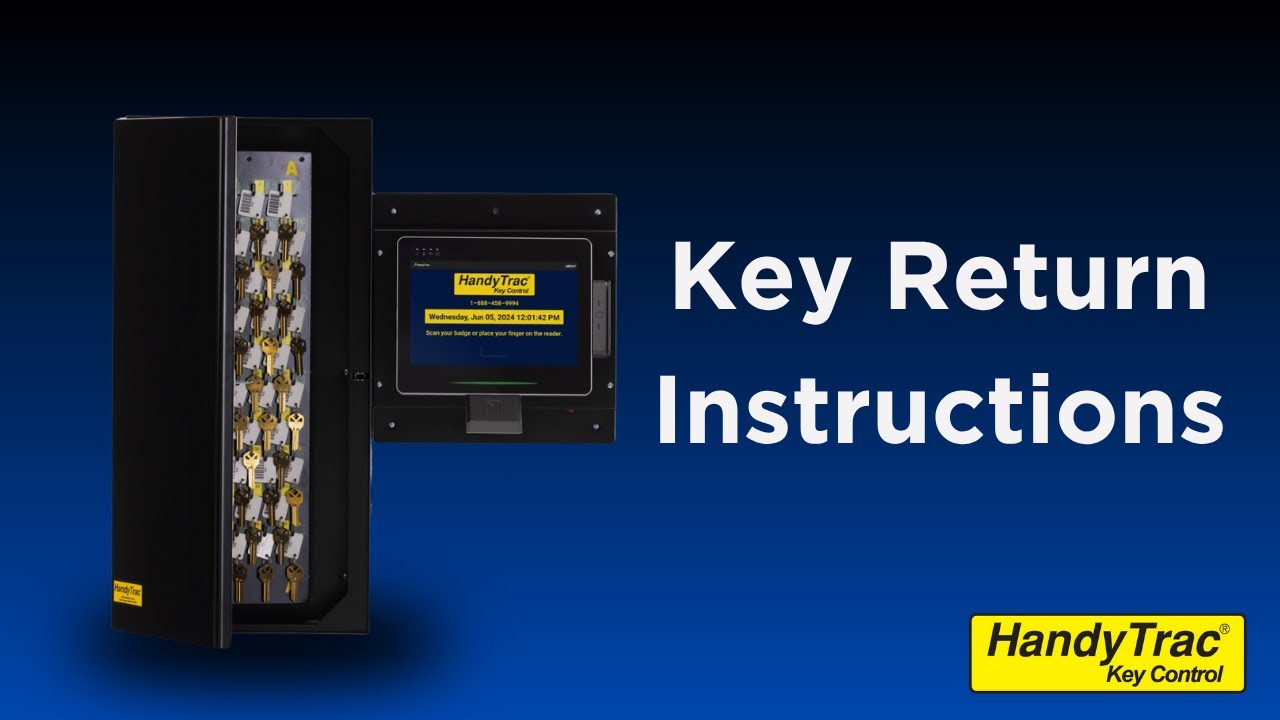
Watch How to Return a Key
Use this short training video to see the return process in action:
Why a Key May Be Assigned to a Different Hook
When a key is returned, the HandyTrac system may direct you to a different empty hook than the one from which it was pulled. This is part of the system’s key rotation process.
Randomly rotating key locations helps prevent employees or unauthorized individuals from memorizing where specific unit keys are stored. Because key locations change as the system is used, printed key maps should not be used during normal operations. Authorized users can access the current Key Map through the HandyTrac website when needed.
What to Do If the Assigned Hook Is Occupied
If the system directs you to a hook that already has a key on it, the existing key has likely been placed on the wrong hook.
To correct the issue:
- Remove the key currently occupying the hook.
- Place the key you originally scanned on its assigned hook.
- Scan the displaced key as a normal key return.
- Place that key on the new hook assigned by the system.
- Repeat the process if another occupied hook is identified.
- Following the system’s instructions helps restore the keys to their correct tracked locations.
Supporting a More Accountable Key Control Process
Pulling and returning a key only takes a few moments, but completing the process correctly plays an important role in maintaining an accurate key control system.
By logging in with individual credentials, selecting the appropriate activity, scanning every key tag, and returning keys to their assigned hooks, property teams can keep key records accurate and reduce confusion during daily operations.
Need assistance with pulling or returning keys? Contact HandyTrac’s dedicated support team for help keeping your key control system secure, accurate, and easy for your staff to use.
Featured Items

Multi Key Pouch
Stores 20 key sets

Key Binder
Stores 15 or 30 keys

Dry Erase Clip Board
Stores 5 keys