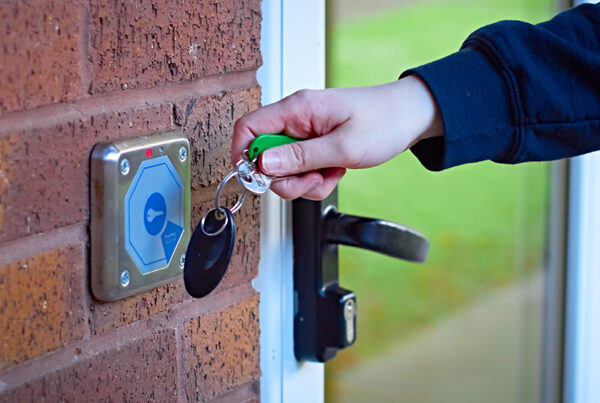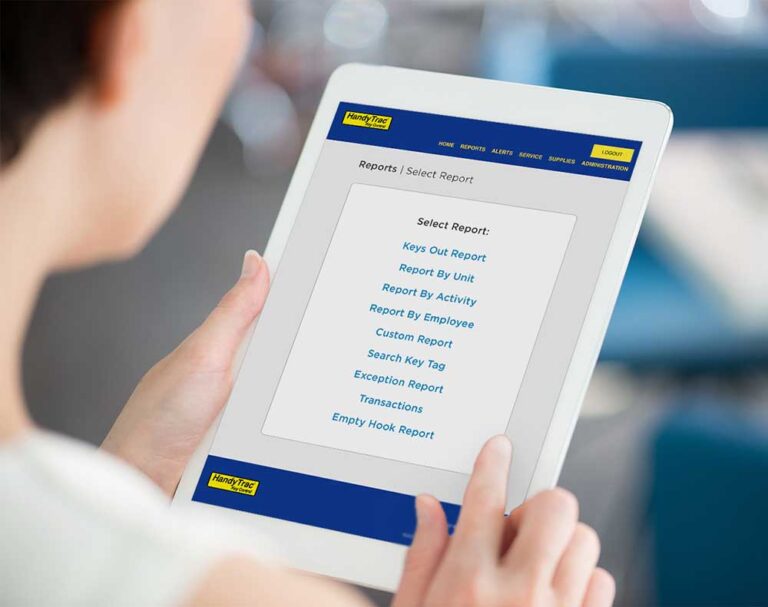

When someone requests a unit key from your HandyTrac system, the activity code records why the key is needed. Customizing activity codes to match your property’s activities makes it easier for your team to select the right option and helps keep your audit trail clear and easy to understand.
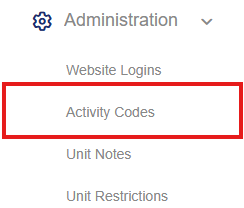 Access Your Activity Codes
Log in to your HandyTrac account online. Under the Administration menu, select Activity Codes.
Customize Your Activity Codes
Review the current list and edit the activity codes to fit your property’s needs. All activity codes within the system can be fully customized.
When organizing the list, move the activity codes your team uses most frequently to the beginning. This makes them quicker to locate when requesting a key.
Once you’ve finished making changes, click Save.
Note: On older Generation 10 systems, every activity code has an associated two digit number. These numbers will appear on the printed activity code list, which can be posted next to your HandyTrac system for quick reference.
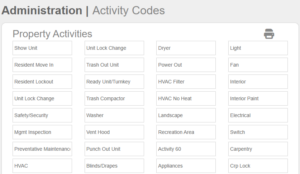
Print Your Activity Code List
To print your activity code list, click the printer icon located in the righthand corner of your screen.
Customizing Activity Codes on the HandyTrac App.
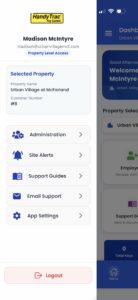
Log in to your HandyTrac account on the app. Tap the menu icon at the top left, then tap Administration.
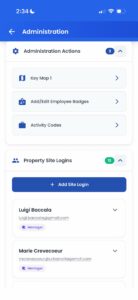
Under Administration Actions dropdown, tap Activity Codes
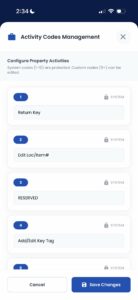
Under Activity Codes Management, you’re able to make changes to your activity codes. Once you’ve finished making changes, tap Save Changes.
Need Assistance?
If you need help customizing your activity codes or have questions about your system, contact HandyTrac Support. Our team will be happy to assist you.