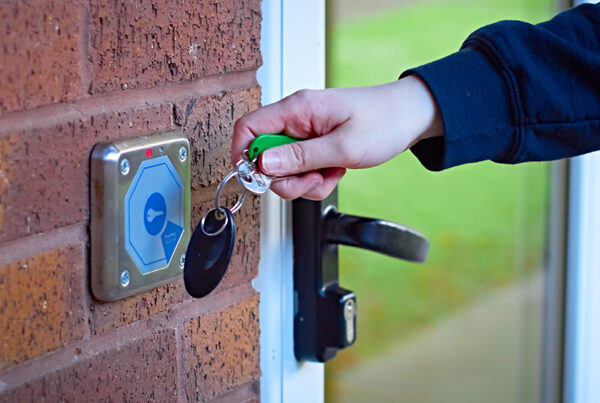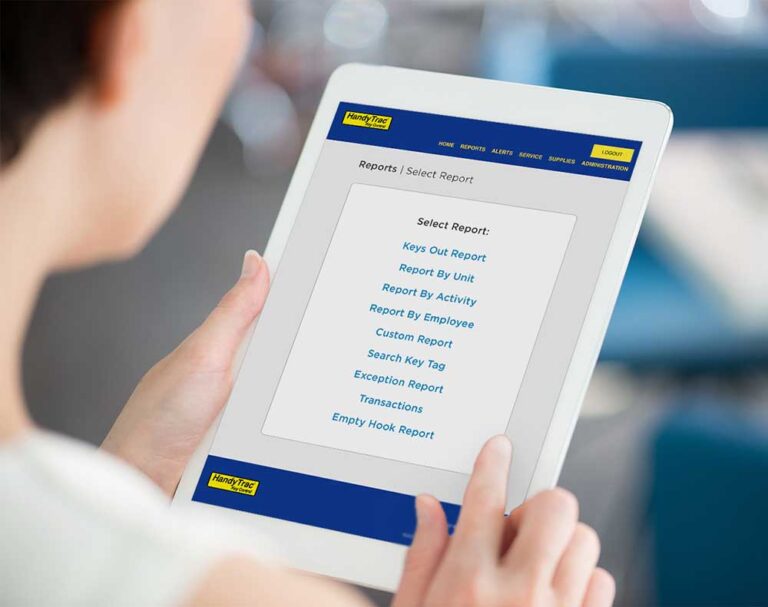
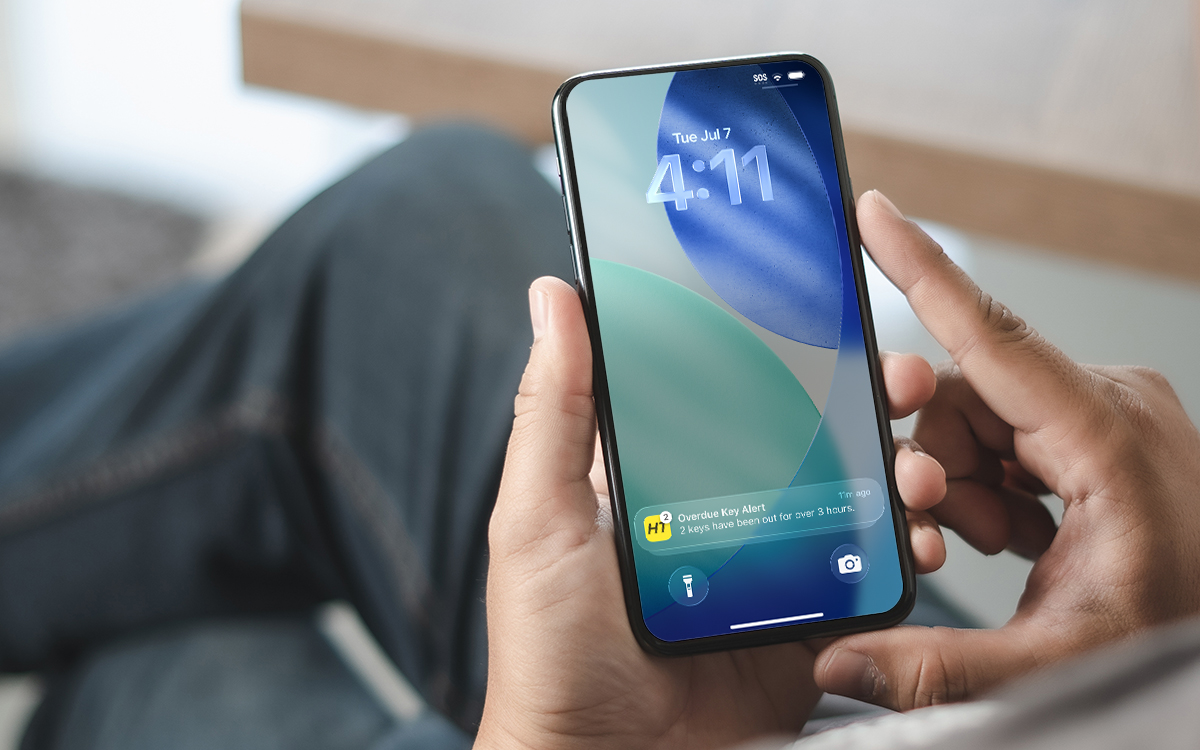
Being away from the office does not have to mean being out of the loop. Account notifications in the HandyTrac app can keep you informed about overdue keys, open cabinet doors, inactive employees, system communication, and other important activity.
These notifications are available to managers and other team members with HandyTrac website login credentials. Because alerts are configured for each individual login, you can choose which notifications are most relevant to you.
What You Need to Get Started
Before setting up account notifications, make sure you have:
- An Android or iOS smartphone with the HandyTrac app installed.
- Property level website login credentials with access to reports and alerts.
- Notification permission enabled for the HandyTrac app. The app will request permission when you first sign in. You can also provide permission later through Alert Settings in the app.
How to Set Up Account Notifications in the App
Once you have everything you need, follow these steps:
- Sign in to the HandyTrac app.
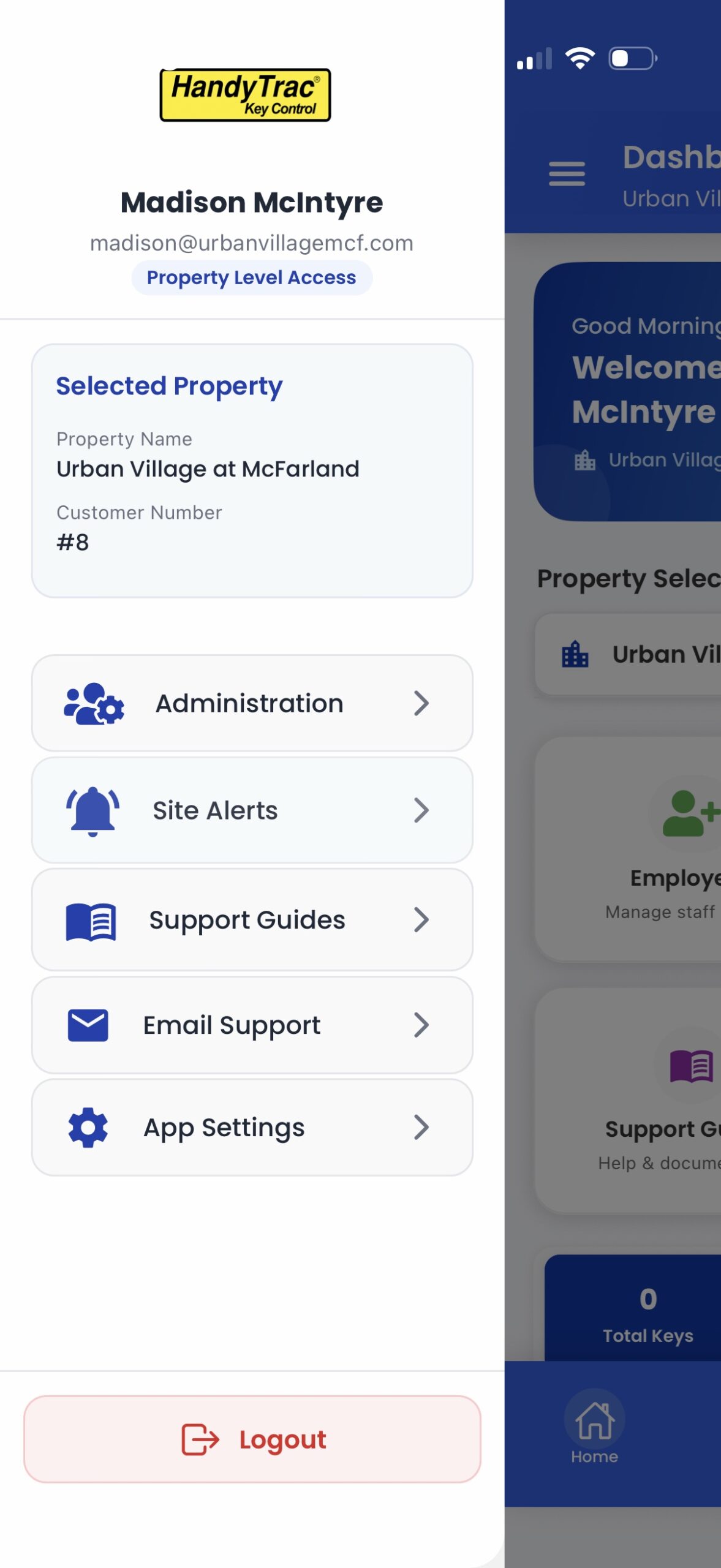
- Select the menu icon in the top left corner.
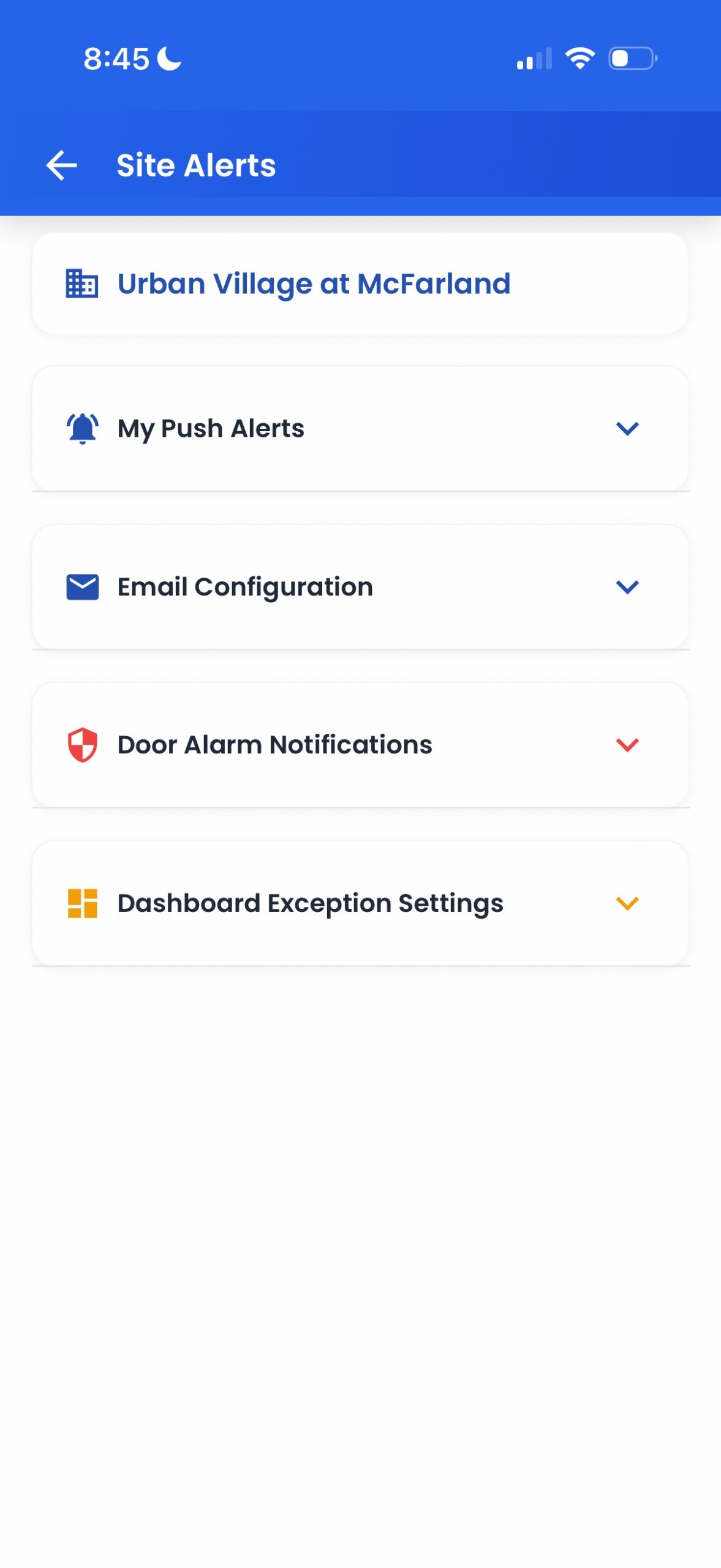
- Select Site Alerts from the menu.
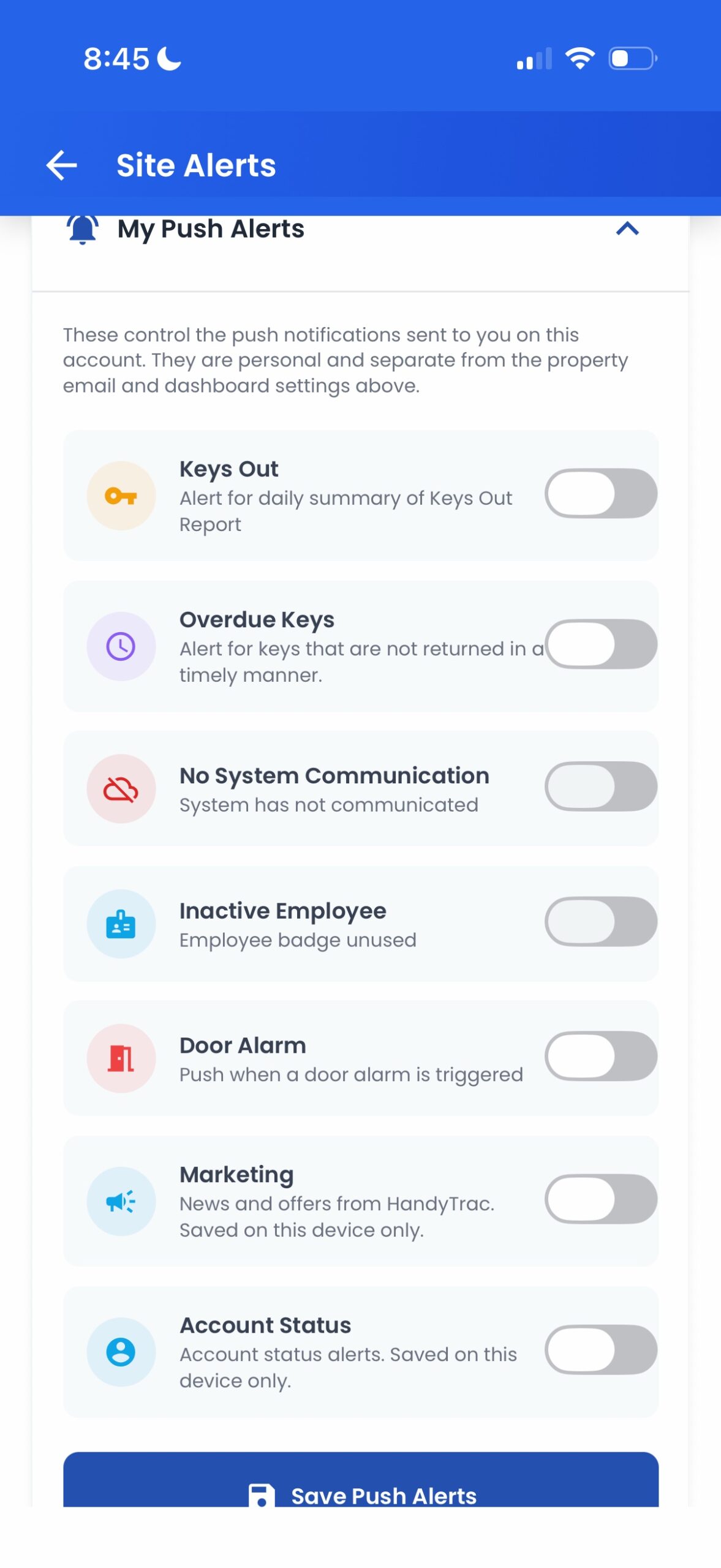
- Find My Push Alerts, which will be the first section listed. From here, you can enable and configure the alerts you would like to receive.
You must remain signed in to the HandyTrac app to receive push notifications.
Configuring App Alerts on the HandyTrac Website
You can also configure your HandyTrac app alerts from a desktop computer. Sign in to your HandyTrac account and select Edit Alerts under the Alerts menu.
These settings are mirrored in the HandyTrac mobile app. You must still be signed in to the app to receive notifications on your mobile device.
For additional guidance, view the complete Account Notifications instructions.
HandyTrac App Notification Options
You can choose from several notification types based on the information you want to receive.
Keys Out Summaries
Select a time to receive a summary showing how many keys are currently out of the system. Scheduling this notification toward the end of the day can help you quickly identify keys that may need to be returned.
Tapping the notification will take you to the complete Keys Out Report in the app.
Overdue Keys
Set the number of hours that a key can remain checked out before it is considered overdue. You will receive an alert when an employee or vendor does not return a key within that timeframe, allowing you to follow up about a possible delay or misplaced key.
Overdue Key notifications are grouped into 5 minute intervals to prevent repeated notifications from arriving too quickly.
No System Communication
Choose how long your system can go without communicating with HandyTrac servers before you receive an alert. When communication is interrupted, your key data, reports, and alerts may not be accurate.
HandyTrac will always email the main property contact after three days without system communication, regardless of the other alerts you have configured.
Inactive Employees
Select the number of days an employee badge can remain inactive before you receive a notification. This alert can remind you to review employees who may no longer work at the property or no longer require access to the system.
Your active employee list should be audited periodically to help prevent unauthorized access.
Open Door Alarms
An alert will be sent immediately if the cabinet door is opened manually or accidentally left open after use. Because an open cabinet creates a serious security concern, the issue should be addressed immediately.
Marketing
Enable this option if you would like to receive occasional information about special offers, new systems, new features, and potential upgrade opportunities. HandyTrac sends an average of three marketing notifications per year.

How to Stop Account Notifications
You can stop account level push notifications in any of the following ways:
- Disable all notification types under Edit Alerts on the HandyTrac website.
- Disable all notification types under Site Alerts in the HandyTrac app.
- Uninstall the HandyTrac app.
Need Assistance?
If you need help signing in, enabling notification permissions, or configuring your HandyTrac app alerts, our support team is ready to assist. Contact HandyTrac Support for help with your account or system.