
Adding users to your HandyTrac system helps ensure each team member has the appropriate access for their responsibilities. The process is slightly different depending on whether you need to create an employee badge through the HandyTrac website or add a property site login through the app.
Before getting started, make sure you are signed in with an account that has permission to add users.
How to Add an Employee on the HandyTrac Website
1. Log in to the HandyTrac website.
2. From the menu list, select Employees.

3. Select Add Employee in the top righthand corner.

4. Fill out all fields with the employee’s information. A badge number and PIN must be entered for an employee, even if fingerprint access will be used as the primary means of accessing the HandyTrac system.
Note: The Badge Number can be found above the barcode on a physical badge. All badges are 6 digits long and begin with “15”. For the PIN, use any 4 digit number.

Once the information is complete, select Save.
Sync Your HandyTrac System
After adding the employee, sync the HandyTrac cabinet so it receives the updated information.
On a touchscreen system, tap the HandyTrac logo once.

On a Generation 10 system, press the ENTER button once.

The new employee information will then be available at the cabinet.
Watch the Video
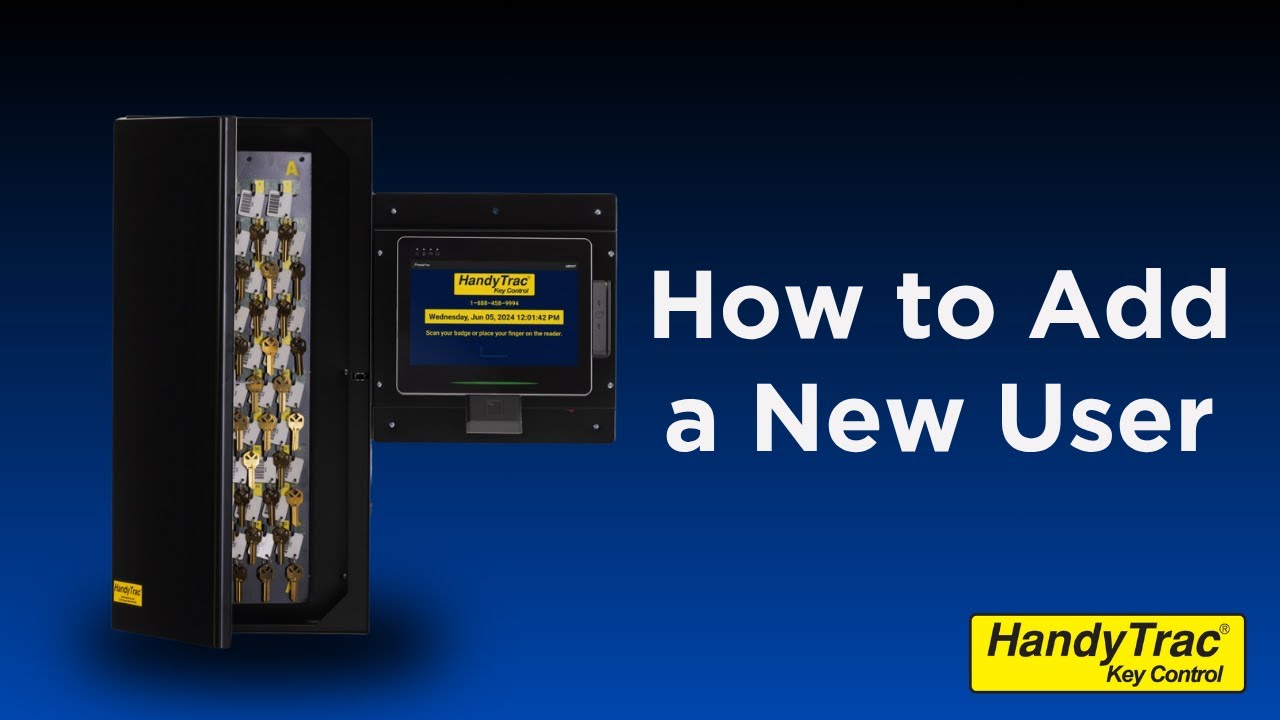
Prefer to follow along visually? Watch our short step-by-step video to see how to add users through the HandyTrac website.
How to Add a User in the HandyTrac App
You can also create a new property site login directly through the HandyTrac app:
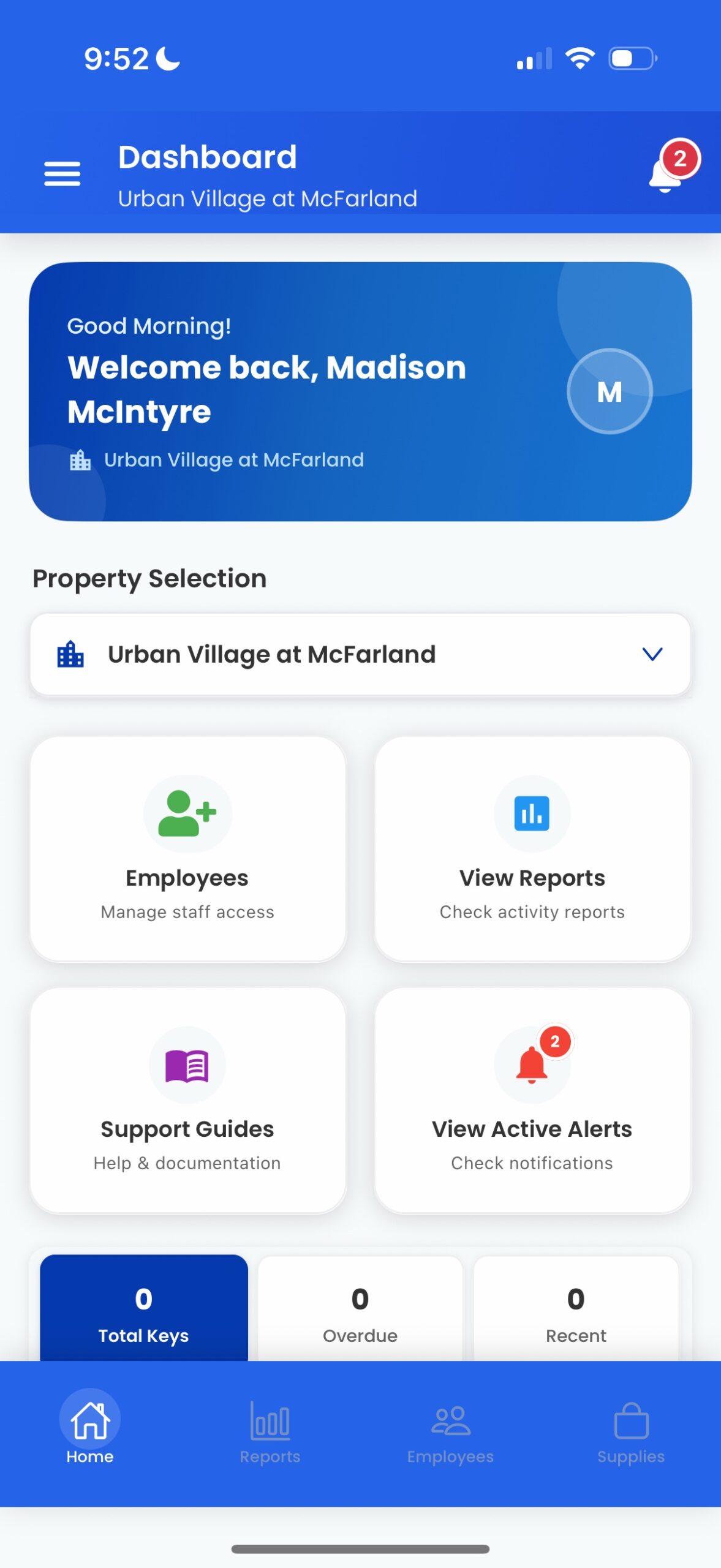
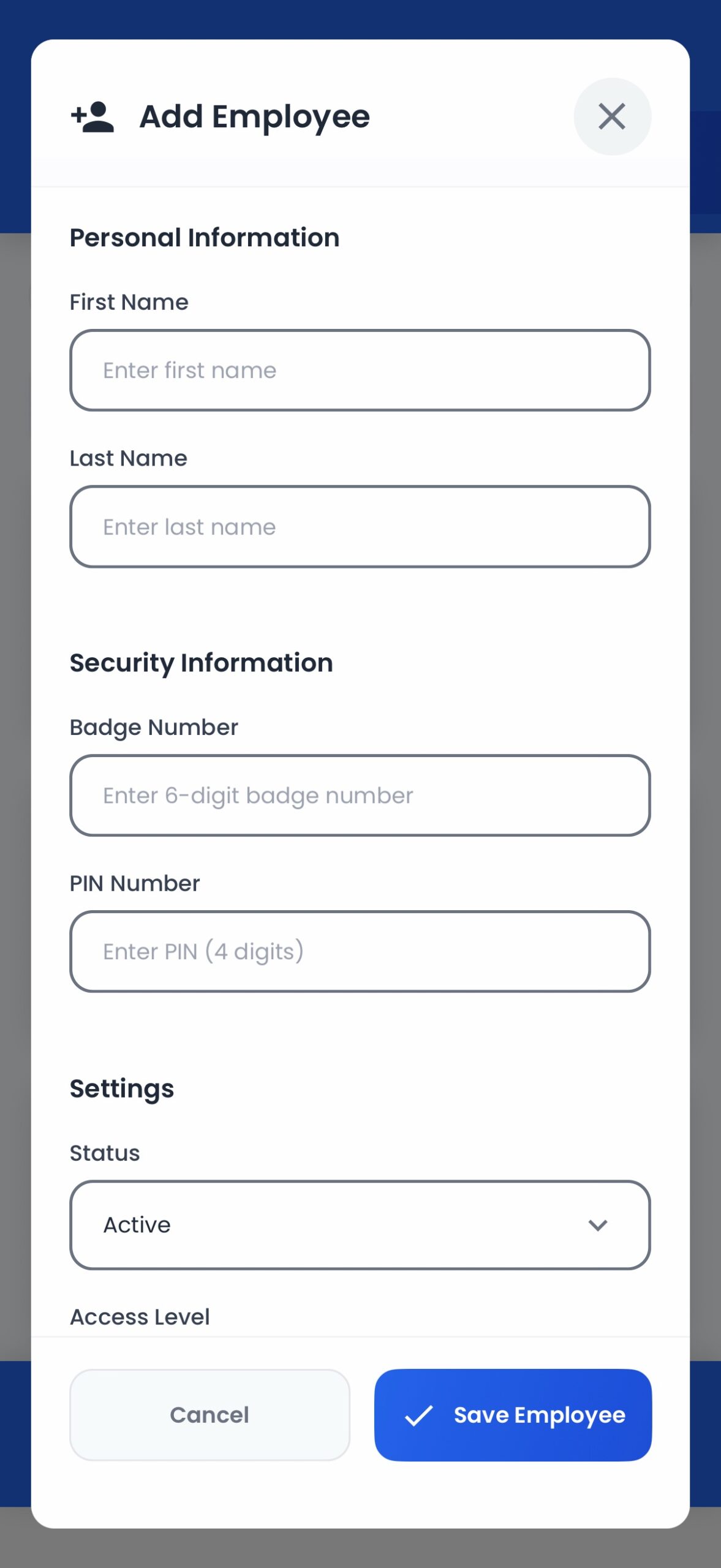
- Open the app and log in.
- From the dashboard, select Employees.
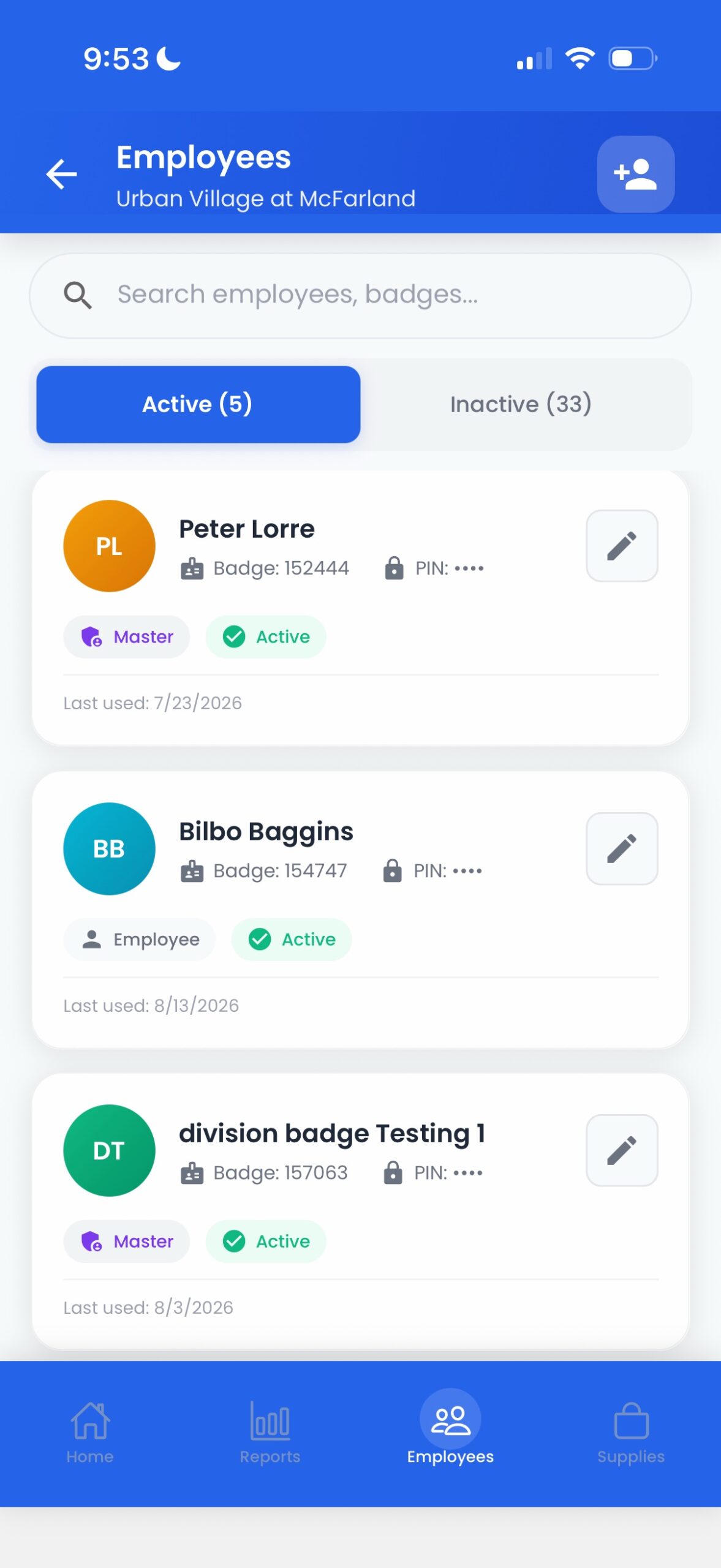
- Tap the Add an Employee icon in the righthand corner.
- Enter the user’s information and access level.
- Once finished, tap Save Employee.
If you have questions or need assistance, reach out through our support page, or call us at 1-800-665-9994. We’re happy to help!