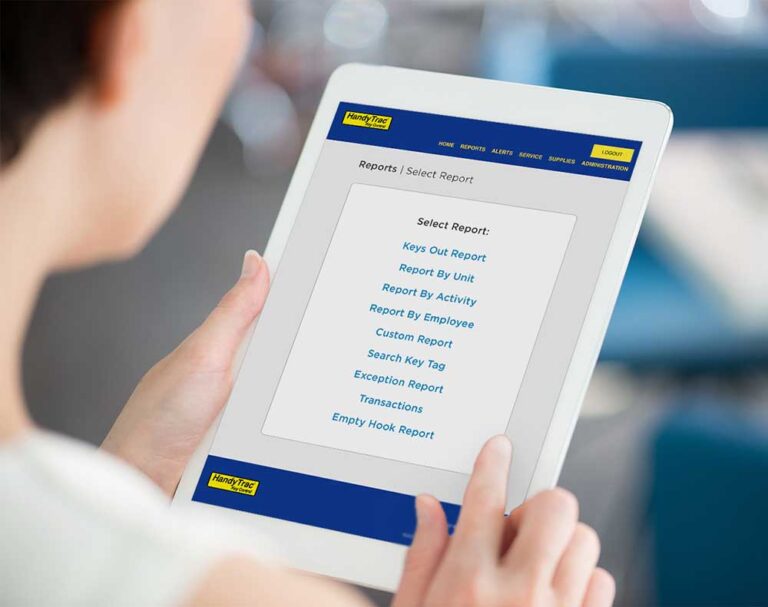

Not every employee needs access to every unit. Unit restrictions allow property managers to limit which keys individual employees can request, helping ensure access stays aligned with each person’s role and responsibilities.
Whether you need to protect sensitive areas, manage temporary access, or update permissions after a role change, unit restrictions provide an added layer of control within your HandyTrac system.
Why Are Unit Restrictions Important?
Limiting access to only the units an employee needs can help reduce unnecessary key activity and support stronger accountability across your property.
Unit restrictions can help you:
- Keep access permissions aligned with employee responsibilities.
- Prevent unauthorized or unnecessary key pulls.
- Support internal security policies and procedures.
- Adjust access when employees change roles or assignments.
- Maintain greater control over sensitive or restricted areas.
Taking a few moments to review and update restrictions can help ensure the right employees have access to the right keys.
How to Set Up Unit Restrictions
1. Log in to the HandyTrac website and select Admin.
2. Choose Unit Restrictions from the available actions.
3. Select the employee whose access you would like to update.
4. Choose the unit or units that the employee should be restricted from accessing.

5. Save your changes.
Once the restriction is in place, the employee will not be able to request keys for the selected units through the HandyTrac system.
Watch the Step-by-Step Video
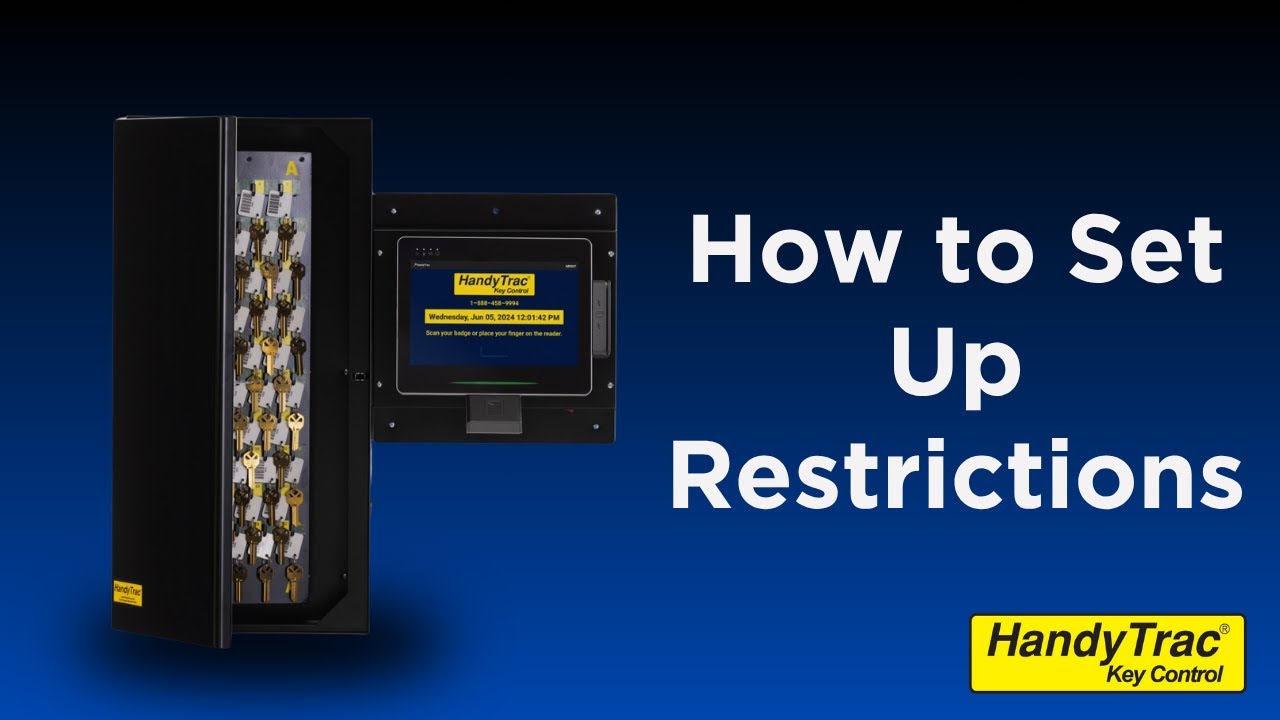
If you prefer to see the process in action, the video below walks through how to set unit restrictions in your HandyTrac Key Control system.
It’s a good idea to review restrictions whenever employees change roles or responsibilities so access permissions remain accurate and up to date.
Need help setting up Unit Restrictions or managing another HandyTrac feature? Contact our support team today to get started.